
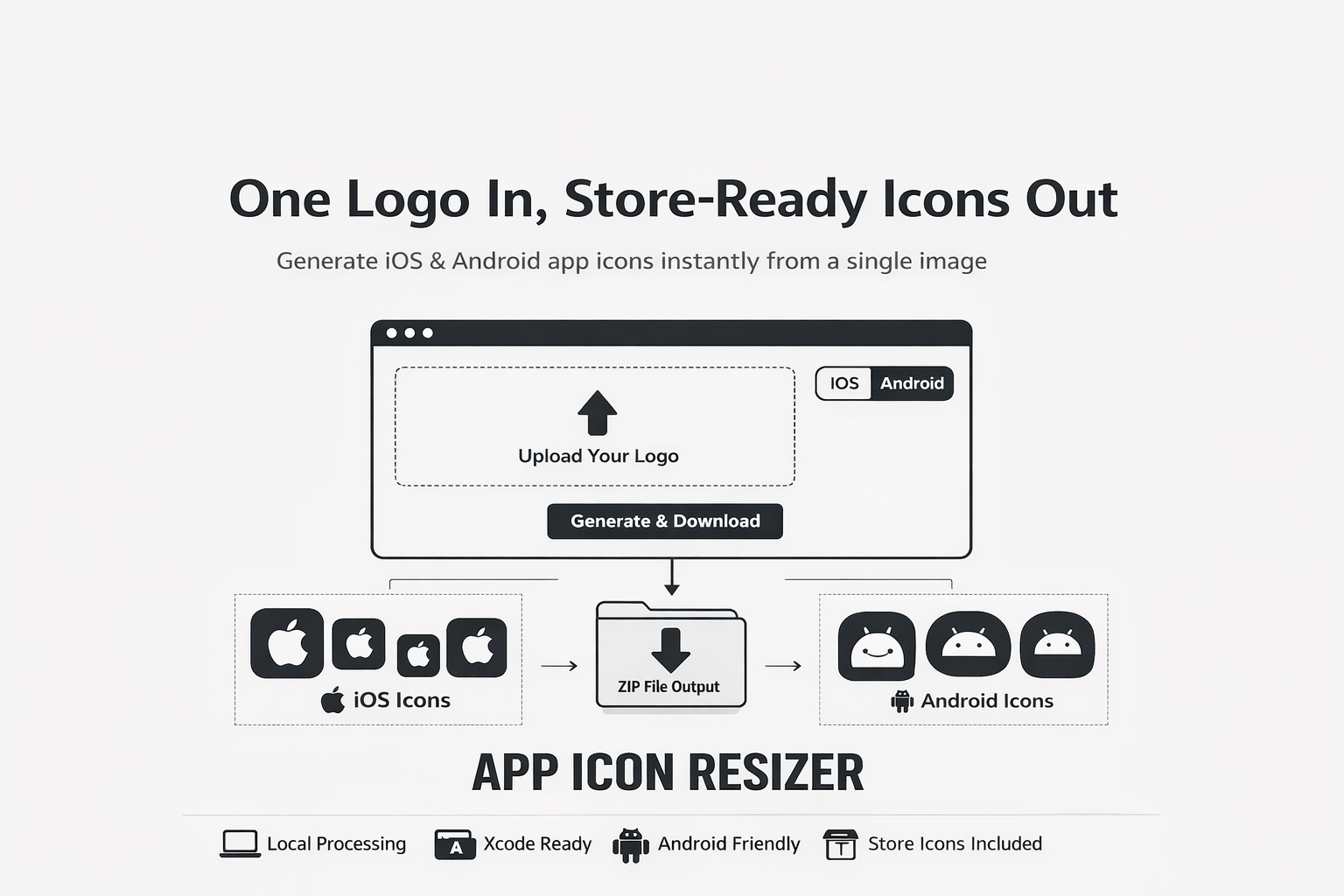
Shipping a mobile app has a funny pattern: you can build an entire onboarding flow in a week, but a missing 167×167 icon can still block your release. If you’ve ever faced the “icons week” spiral—exporting dozens of sizes, double-checking naming, rebuilding folder structures, and then discovering the smallest size is unreadable—you already know the pain.
App Icon Resizer is built for this exact moment:
- Upload one source image
- Pick iOS or Android
- Preview everything (including corner masks and device context)
- Download a zip that is ready to drop into your project
- Runs locally in your browser (no uploads)
---
TL;DR
If you want a store-ready icon pack in under a minute, App Icon Resizer is the workflow:
- Upload PNG/JPG (drag & drop, or paste from clipboard)
- Choose iOS or Android
- Generate + preview
- Download zip
- Drop into
Assets.xcassets(iOS) orapp/src/main/res/(Android)
---
What it generates
iOS output (Xcode-friendly)
You get a complete AppIcon.appiconset folder plus an auto-generated Contents.json, so Xcode maps each icon to the right slot automatically. This isn’t just “a bunch of PNGs”—it’s a format that Xcode understands out of the box.
Android output (Android Studio-friendly)
You get standard mipmap-* density buckets with the conventional launcher icon filename ic_launcher.png in each bucket, plus the store icon size. Again: not a random folder—this is the structure Android projects expect.
Store listing sizes included
- App Store: 1024×1024
- Google Play: 512×512
---
Why this tool is different from other icon generators
There are plenty of icon tools out there. The problem is that many optimize for “look, I resized images,” not for “I can paste this into Xcode/Android Studio and ship.”
Here’s where App Icon Resizer stands out.
1) Local processing (no uploads)
Many online generators require uploading your brand assets to a server. That’s inconvenient at best and unacceptable for many teams at worst—especially for products that haven’t launched yet. App Icon Resizer runs locally in the browser, so your icon never leaves your device.
2) Outputs are project-ready, not just exported PNGs
Other tools often leave you with:
- A pile of images you still need to rename
- No clear folder structure
- No
Contents.jsonfor iOS
App Icon Resizer generates formats aligned with real project layouts:
- iOS
AppIcon.appiconset+Contents.json - Android
mipmap-*folders +ic_launcher.png
This is the difference between “assets exported” and “assets integrated.”
3) No distortion by default (aspect ratio preserved)
Icons look cheap when a logo is stretched. The resizer preserves aspect ratio and centers your artwork inside square icons. If your source isn’t square, it won’t be squashed—it’s contained and centered.
This matters more than people think: platform launchers and store listings make icons appear everywhere, and inconsistencies read as low quality instantly.
4) Previews that prevent production mistakes
Resizing is easy. Catching release-blocking visual issues is harder. App Icon Resizer adds preview workflows so problems show up before you download and commit assets:
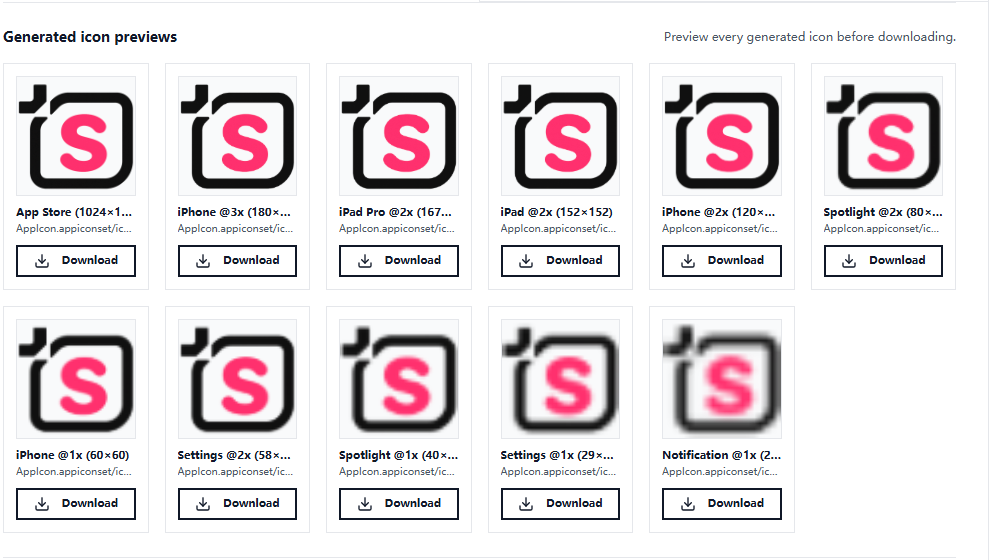
- Multi-size preview grid (spot blurriness and readability issues)
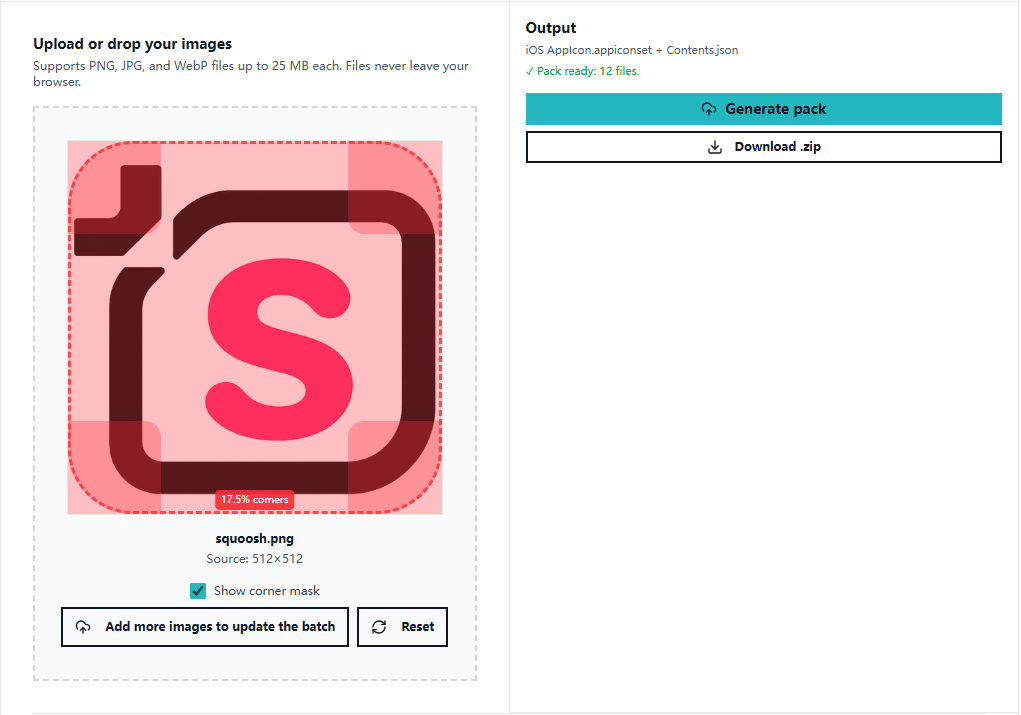
- iOS corner mask / safe-zone overlay preview
- Android adaptive icon shape preview (different masks)
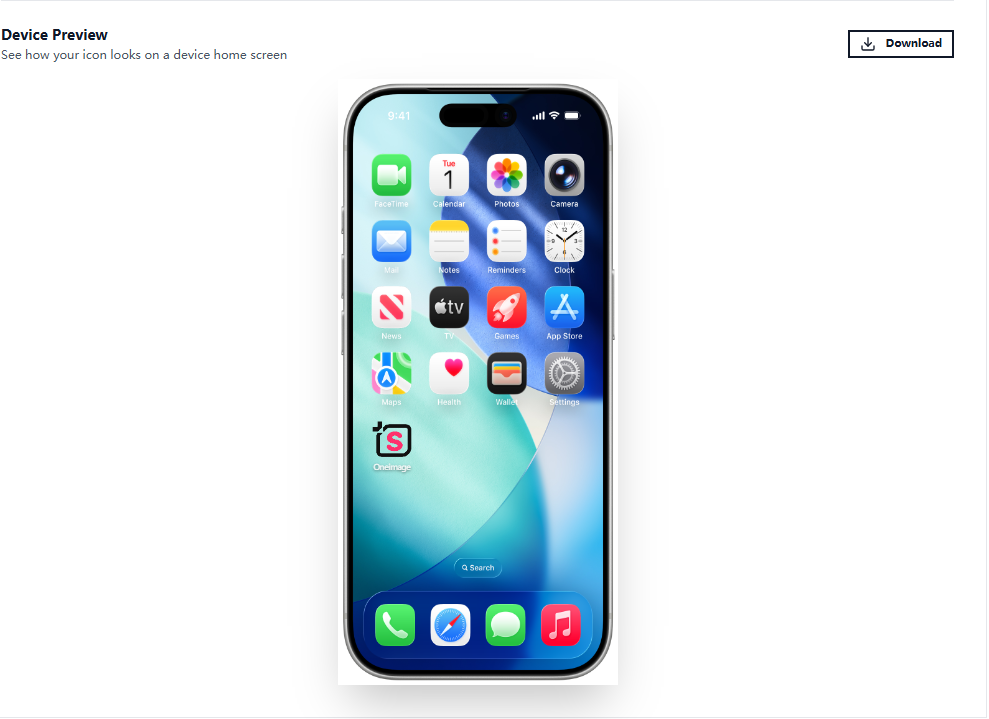
- Device preview (home screen context)
- Optional: download individual icons when you only need one
5) Built-in setup instructions + copy-paste snippets
Instead of forcing users to search docs for “where do I put these,” the tool provides quick instructions and example snippets for:
- iOS asset catalogs and
Contents.json - Android manifest icon references
- Xcode / Android Studio usage
- Flutter workflows (including a
flutter_launcher_iconsexample)
This is a practical advantage for teams: fewer questions, fewer mistakes, and fewer “it works on my machine” loops.
---
What the zip looks like (so developers can trust it)
A fast way to build confidence is to show the output structure. Here’s what you should expect after unzipping.
iOS pack structure
ios/
  AppIcon.appiconset/
    Contents.json
    icon-20@2x.png
    icon-20@3x.png
    icon-29@2x.png
    icon-29@3x.png
    ...
    icon-1024.png
Android pack structure
android/
  playstore/
    ic_launcher.png   (512x512)
  mipmap-mdpi/
    ic_launcher.png   (48x48)
  mipmap-hdpi/
    ic_launcher.png   (72x72)
  mipmap-xhdpi/
    ic_launcher.png   (96x96)
  mipmap-xxhdpi/
    ic_launcher.png   (144x144)
  mipmap-xxxhdpi/
    ic_launcher.png   (192x192)
🖼️ Screenshot Placeholder: Zip output / folder tree view (replace later)
---
60-second usage guide
1) Upload your logo PNG/JPG supported. Drag & drop works. Clipboard paste is supported too—great for quickly testing icons from design tools.
2) Choose your platform Select iOS or Android.
3) Generate & preview Check small sizes first (like 29×29). If it’s unreadable there, it won’t get better in production.
4) Download .zip and integrate Follow the steps below.
---
Integration steps (copy-paste friendly)
iOS (Xcode)
- Unzip the download
- Copy or drag
AppIcon.appiconsetintoYourApp/Assets.xcassets/ - In Xcode, confirm your app target uses the right App Icon set:
Target → General → App Icons and Launch Images → App Icons Source
That’s it—Contents.json handles mapping.
Android (Android Studio)
- Unzip the download
- Copy
mipmap-*folders intoapp/src/main/res/ - Ensure your manifest points to the launcher icon:
<!-- AndroidManifest.xml -->
<application
    android:icon="@mipmap/ic_launcher"
    android:roundIcon="@mipmap/ic_launcher"
    ... >
</application>
Flutter (optional)
If you prefer a Flutter-native workflow, you can still use the generated assets, or wire up flutter_launcher_icons.
# pubspec.yaml
dev_dependencies:
  flutter_launcher_icons: ^0.13.1

flutter_icons:
  android: true
  ios: true
  image_path: "assets/icon.png"
---
Usage notes (avoid store submission gotchas)
These tips come from real submission gotchas—worth checking once so you don’t repeat work later.
Start with a 1024×1024 source image (really)
App Store and Google Play listings require high-resolution icons, and starting from 1024×1024 ensures smaller sizes don’t look blurry. If you begin with a smaller image, you’re forcing the generator to upscale—blur is inevitable.
Don’t pre-round corners for iOS
iOS applies its own corner mask automatically. Provide a square icon—let the system do the rounding. Use the safe-zone overlay preview to verify nothing important sits too close to the edges.
Transparency: iOS vs Android rules differ
- iOS: icons should be opaque (avoid transparency).
- Android: launcher icons are typically opaque; adaptive icons may use transparency in foreground layers.
Because the generator preserves aspect ratio (contain + center), a non-square logo on a transparent background can produce transparent padding. For iOS submissions, consider baking a solid background behind your logo before generating the pack.
Android adaptive icons: know the boundary
The resizer generates standard mipmap launcher icons. For full adaptive icons (separate foreground/background layers), you’ll still want to design layered assets. Use the adaptive shape preview to check how your current icon holds up under different masks.
Always eyeball the smallest sizes
An icon that looks perfect at 1024×1024 can turn into a smudge at 29×29. Use the preview grid to check legibility at small sizes before you commit.
---
Pre-launch checklist (copy this into your release PR)
- [ ] Source image is 1024×1024 (or higher), crisp, and not compressed
- [ ] iOS icon is square and opaque (no transparency)
- [ ] No pre-rounded corners on iOS (system will mask)
- [ ] Smallest sizes (29/40/48) are readable
- [ ] Android icon looks good under different adaptive masks
- [ ] Output folders are copied into the correct project paths
- [ ] App launches on a real device and the icon appears correctly
---
How it compares (quick table)
| Approach | Typical workflow | Common problems | App Icon Resizer advantage |
|---|---|---|---|
| Generic image resizer | Export multiple PNGs | No folder structure, no mapping | Generates project-ready structure |
| Online icon generator | Upload → download | Privacy concerns, inconsistent outputs | Runs locally, no uploads |
| Design tool export | Manual exports | Naming/size mistakes, inconsistent sets | Consistent sizes + previews |
| CLI scripts | Configure/build | Setup overhead, team friction | Browser-based, fast, shareable |
---
Call to action
If your goal is to stop thinking about icons and get back to shipping, App Icon Resizer is made for you.
- Use it when you need store-ready packs quickly.
- Use the previews to avoid last-minute submission surprises.
And if you also need batch resizing for arbitrary dimensions beyond app icons, check out the Image Resizer tools in OneImage (great for marketing images, screenshots, and asset pipelines).