

The OneImage Image Converter is now live, bringing quick and easy image format conversion to your browser. This new tool lets you change any picture’s format in seconds – without downloads or uploads.
Photographers sharing RAW photos, designers handling HEIC files from iPhones, and developers prepping WebP assets for the web can all save time. Drag in an image (or a batch of them), choose the format you need, and download the results – all without your files ever leaving your device.
Why we built an image converter into OneImage
Not all images come in the format you need. Maybe a client sends a logo as a PSD file and you need a PNG, or your phone exports photos as HEIC that colleagues can’t open.
We heard your requests for a simple, secure way to handle these situations. The OneImage platform already offers cropping, blurring, compression and more – adding a format converter was a natural next step.
And like all OneImage tools, it runs entirely in your browser for privacy-first processing. You get the flexibility to handle 40+ image formats without hunting for separate apps or risking your files on random online converters.
Everything you expect from a converter, built in
Inside the OneImage Converter you’ll find a full toolkit for format swapping:
- Broad format support: Open over 40 image types, from common JPEG, PNG, GIF, and TIFF to newer formats like WebP, AVIF, and JPEG XL. You can even convert professional formats like PSD or camera RAW files (CR2, NEF, ARW, etc.) into more shareable images – no special software needed.
- Modern output options: Need smaller files for the web? Convert anything to efficient modern formats. For example, turn a PNG into a WebP or AVIF and dramatically shrink file size while keeping quality.
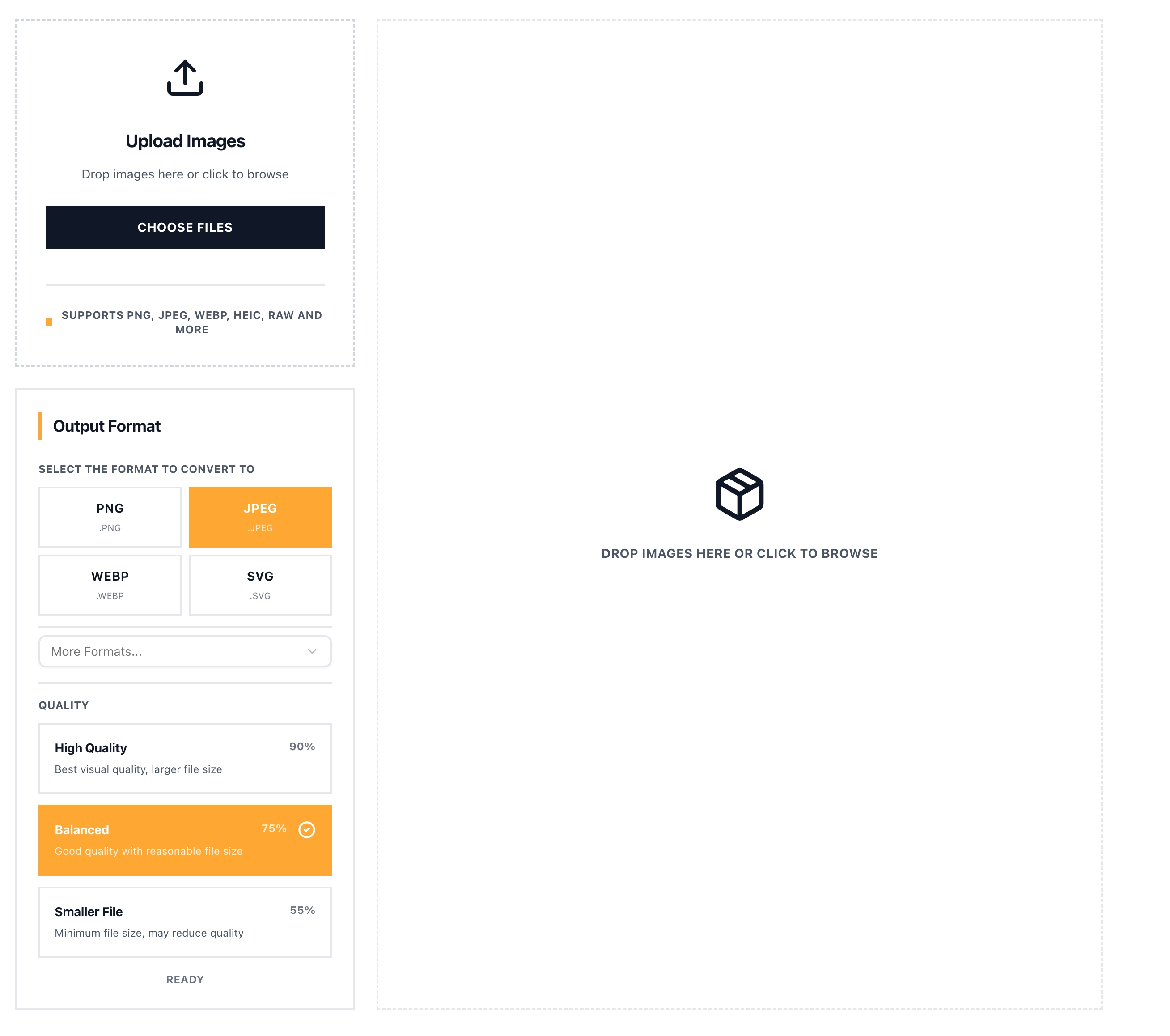
- Quality control: For formats that support compression (like JPEG or WebP), you’re in control of quality. Choose a preset like High Quality, Balanced, or Smallest File – or fine-tune the quality slider yourself – to get the right balance of clarity and size.
- Batch conversion: Save time by converting multiple images at once. Drop in a whole folder of images if you want – the converter will process them all to your chosen format in one go. Each file shows its new size (and how much it shrank or grew), and a handy “Download All” button lets you grab every converted image in one ZIP file.
- Icon creation: Need a favicon or app icon? You can convert any image into ICO, ICNS, or CUR formats. OneImage helps you create proper icon files for websites or applications without extra hassle.
- No uploads, no installs: Because conversion happens locally via WebAssembly, you don’t need to upload files or install anything. Even large images or sensitive photos stay with you. It’s fast, private, and works even if your internet connection is slow or offline once the tool is loaded.

Built for everyday workflows
The Image Converter fits smoothly into your daily routine with OneImage. If you already rely on tools like Blur, Overlay, or EXIF Remover, this converter slots right in.
For example, you might capture a high-resolution screenshot in an uncommon format – simply paste it into the converter to get a web-friendly PNG, then continue editing or sharing. No more juggling separate conversion websites or native apps.
Teams on tight deadlines can remain focused on their main work (be it design, content management, or analytics) while OneImage quietly handles format hiccups in the background.
Because the conversion engine runs in your browser (powered by the acclaimed ImageMagick library under the hood), speed is consistent and predictable. There’s no waiting on a server queue or worrying about Wi-Fi dropouts mid-upload. Your images never enter a cloud server – keeping compliance officers happy and ensuring the privacy promises of OneImage remain upheld.
How to use the OneImage Converter
Using the converter is straightforward and doesn’t require any technical know-how:
- Upload your image(s): Click the upload area or simply drag and drop files into the Converter page. You can even paste an image from your clipboard. The tool accepts dozens of file types – from PNG and JPEG to RAW and more – so just about any image you have will work.
- Choose an output format: Pick the format you want to convert to. The interface highlights popular choices like PNG, JPEG, WebP, and SVG up front, and a dropdown lets you select from the full list of supported formats.
- Adjust quality if needed: If you chose a lossy format (such as JPEG or WebP), you’ll see an option to set the quality. You can stick with a preset (e.g. Balanced ~75% quality) or adjust a slider for fine control.
- Convert and download: Hit the Convert button. The OneImage Converter will quickly process your image. In seconds, you’ll see a preview of the converted result along with details like the new file size and format.
If you converted multiple images, you can download each one separately or use the Download All button to get a single ZIP containing all your converted files.
That’s it! In a few clicks, you’ve transformed your image to the format of your choice.
Available now – and free for everyone
The OneImage Image Converter is available right now on our website as a free online tool. There’s nothing to install or buy – just head to the Converter page and start converting your images instantly.
We built this extension to make everyday tasks easier, and we’re excited to see it help you in your projects.
As always, we welcome your feedback. Let us know how the converter fits into your workflow and if there are additional features or formats you’d love to see. Our team is already exploring further improvements (like even deeper metadata control and more format support) to keep OneImage as useful as possible.
Give the new converter a try today, and say goodbye to format frustration!
---
💌 Have feedback or questions? Reach us at support@oneimage.co